How to Set Up IPTV on Smart TV
A practical Smart TV setup guide covering app choice, network checks, activation details, and the steps that make first-time installation smoother.
What this guide covers
This article is designed to help readers move from general interest to practical action. It focuses on the main steps, decisions, and troubleshooting points that matter most for this topic, without forcing visitors to jump between multiple pages just to understand the basics.
If you are comparing devices, evaluating a subscription path, or preparing for setup, the sections below are meant to give you a clear, support-friendly starting point before you move on to pricing or direct WhatsApp contact.
Before you start
The smoothest Smart TV setup starts with the basics: a stable home internet connection, enough free storage on the television, and the exact activation details supplied after your order is confirmed. Most setup delays come from rushing through one of these small steps.
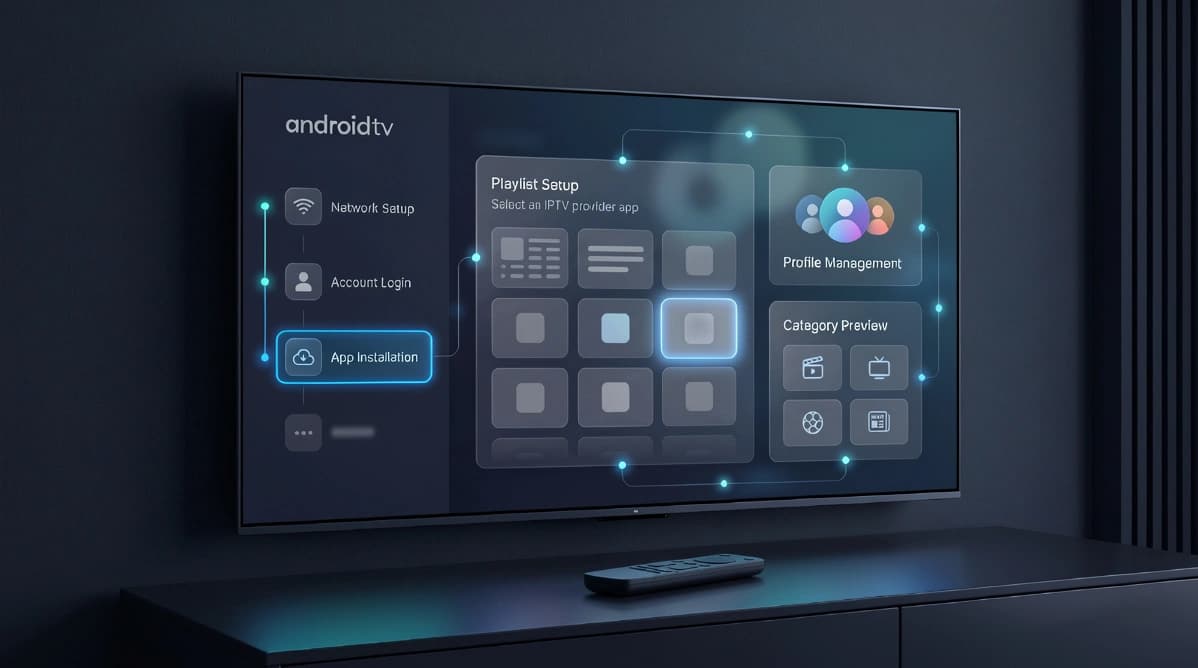
It is also worth checking whether your television runs Android TV, Google TV, Tizen, webOS, or another operating system. App availability can vary by platform, so identifying the TV software first helps you choose the right route without guesswork.
- Confirm your TV software version and app store access
- Prepare the login or playlist details sent by support
- Restart the TV and router before first-time setup
Install the right app
Once your TV is ready, download a compatible IPTV player from the official app store for your device. Some televisions support advanced players with guide views, while others work better with lightweight apps that focus on simple playback.
When possible, choose an app that offers favorites, category sorting, and a clean interface for remote control navigation. That makes daily use much easier, especially for family members who want a familiar TV-style experience.
- Use only reputable apps available through the device store
- Check for a category view or live guide interface
- Avoid installing multiple players at once during initial testing
Enter subscription details
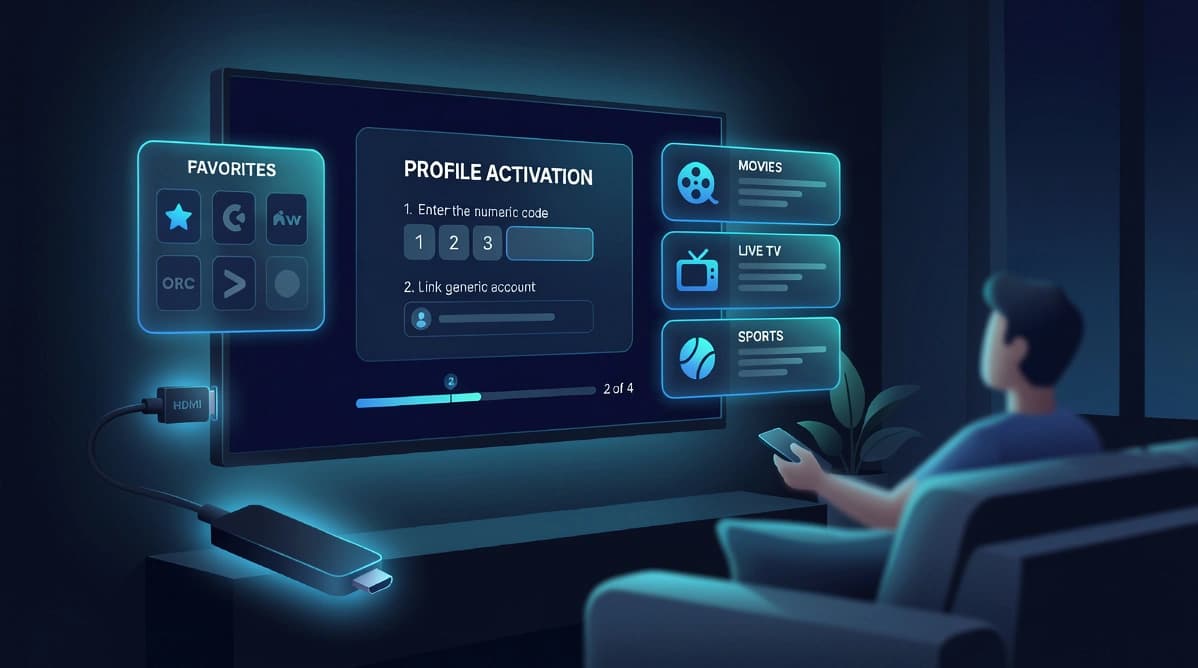
After installation, open the player and choose the input method it asks for, such as a playlist link, portal details, or account credentials. Enter the information exactly as provided, including capitalization and symbols where relevant.
If the app requests several fields and you are unsure which one applies, it is better to pause and confirm rather than fill in placeholders. A short message to support can prevent the common mistakes that cause empty categories or failed loading.
- Copy details carefully to avoid spacing issues
- Label the profile with a clear name such as Living Room TV
- Wait for the initial content sync to finish before testing categories
Improve playback quality
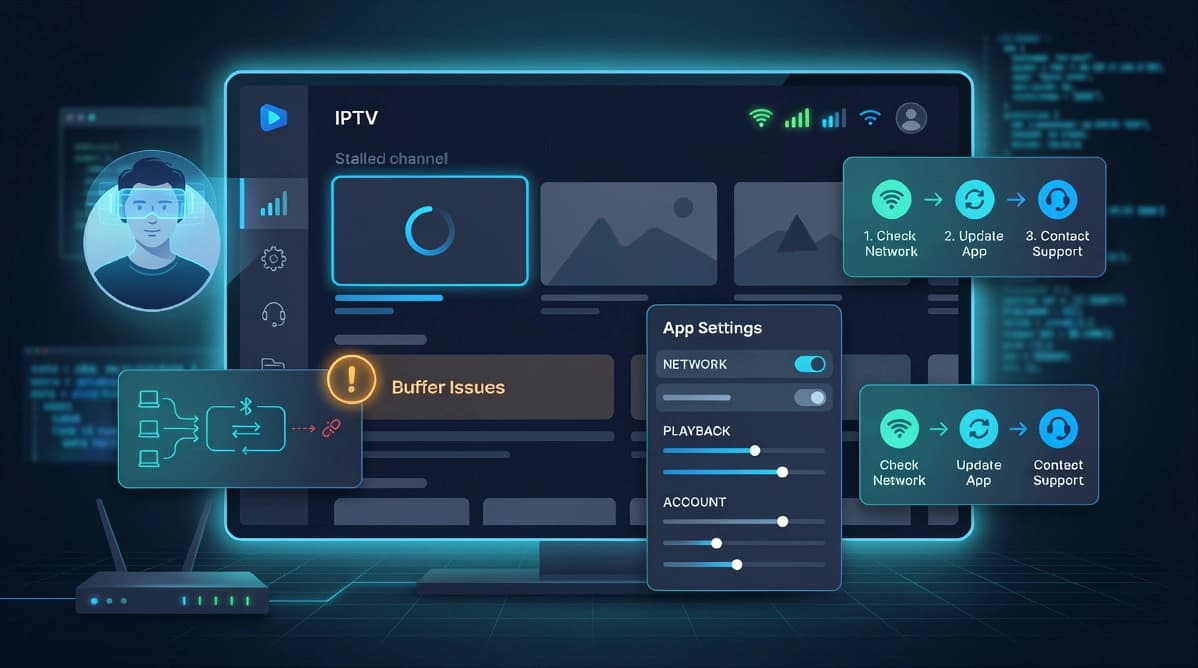
If the service loads but playback feels inconsistent, focus on network quality first. Wired Ethernet usually gives the most stable result, while a strong 5 GHz Wi-Fi signal can also work well for many households.
You can further improve the experience by closing unused apps, updating the TV firmware, and reducing background traffic on the home network during testing. These changes often matter more than reinstalling the player.
- Prefer Ethernet for the main living room television
- Keep the TV system software updated
- Test stream quality at the time of day you usually watch
Practical next step
Once you understand the topic covered here, the next step is usually to match it to your device setup, viewing habits, and subscription needs. That is why UltraMediaView pairs educational content with plan pages, tutorials, and direct support rather than leaving visitors to figure out the final step on their own.
If you still have questions after reading, the pricing, devices, tutorials, and contact pages can help you move from research into action with much less friction.
- Compare best IPTV UK providers if you are buying for the UK market.
- Review IPTV subscription in France for French-language plan guidance.
- Prepare your device with the install IPTV on Firestick guide.